
Register a visit
These steps walk you through registering a planned visit: you tick off the depots on the floor plan and finish with a digital signature. Intended for field staff during an on-site visit.
Before you start
Section titled “Before you start”- A planned visit on a location that has a floor plan set up.
- The Field staff role or higher.
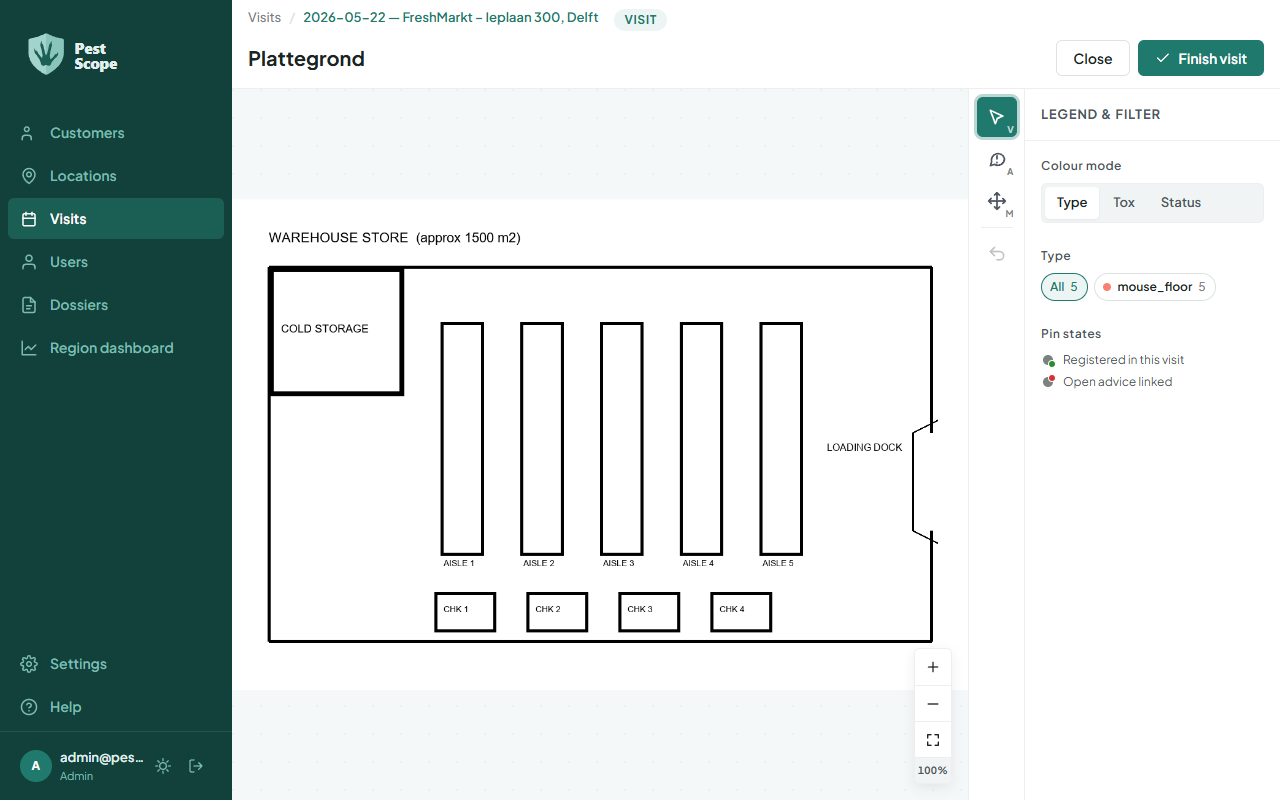
- Open the planned visit and choose Continue visit. The wizard opens the location’s floor plan.
- In the wizard, choose Start visit. The status changes to In Progress.
- Tap each depot and record its type, bait level, and status. Depots you don’t tap are automatically marked OK when you close the visit.
- To finish, choose Complete and have the customer sign digitally.
Result
Section titled “Result”The visit is set to Completed and the visit report is generated automatically as a PDF. You’ll find it on the visit and in the location’s dossier.